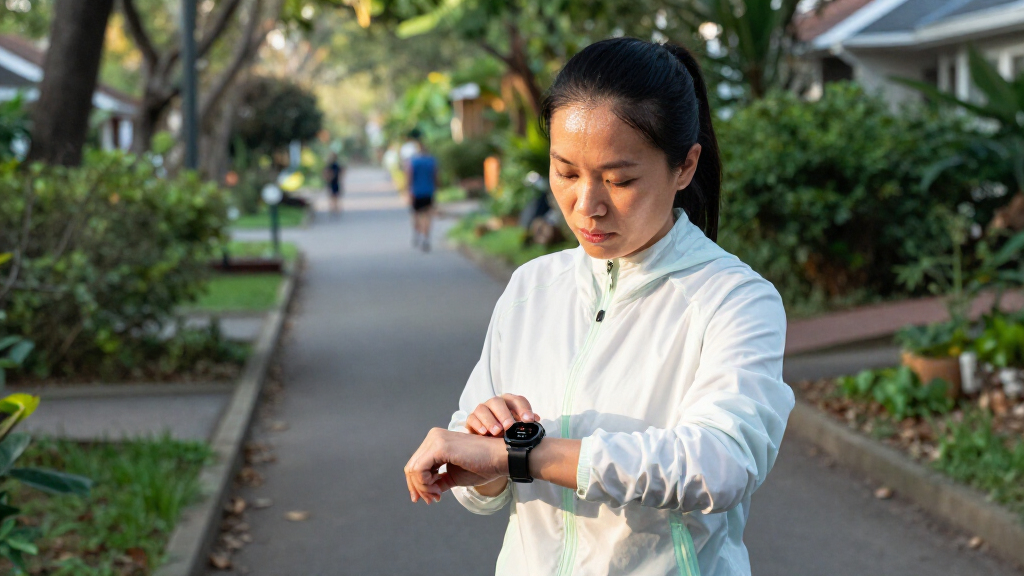

Set up your fitness tracker to record health-related measurements and review them as trends over time. This guide is for beginners who want to monitor activity, sleep, heart rate, or other features their device supports. Allow about 30-45 minutes for setup, then a few minutes each day to check your data. A tracker can help you notice patterns, but its readings do not diagnose a medical condition.

Get health and wellness essentials delivered free with Prime
- Fast, free delivery on millions of items
- Prime Video, Amazon Music and more included
- Member-only deals all year

Google Fitbit Air Screenless Activity Tracker, Obsidian
- ✔ Design: Screenless tracker with micro-adjustable Google Performance Loop band
- ✔ Sensors: Optical heart rate, accelerometer, gyroscope, temperature, red and infrared SpO2
- ✔ Battery: Up to 7 days; up to 1 day of use from a 5-minute charge

FITVII FINO2 Slim Fitness Tracker with Heart Rate, Sleep, and Activity Monitoring
- ✔ Display: 1.45-inch LCD touchscreen
- ✔ Health tracking: Heart rate, blood pressure, blood oxygen, sleep and activity
- ✔ Water resistance: IP68

Bakoor C60 Fitness Tracker with 1.1-Inch AMOLED Screen
- ✔ Display: 1.1-inch AMOLED touchscreen
- ✔ Health tracking: Continuous heart rate, steps, calories, distance and sleep
- ✔ Sports modes: 25
Difficulty: Beginner | Time: 30-45 minutes for setup, then a few minutes daily
What You’ll Need
Tools & Materials:
- Fitness tracker with its charging cable or charger
- Compatible smartphone or computer, if the tracker requires one
- Tracker manufacturer’s app and account
- Wi-Fi or mobile data for app setup and syncing, if required
Knowledge:
- Basic ability to install an app and use Bluetooth
- Awareness of your usual activity and sleep routine
Check the tracker’s compatibility, supported phone operating system, and health features before setup. Charge the device, read the manufacturer’s fit and cleaning instructions, and review how it stores or shares health data. If you use a tracker for a health condition, ask your clinician which readings or alerts are useful to discuss.
Google Fitbit Air Screenless Activity Tracker, Obsidian
The Fitbit Air takes the top spot because its screenless format is designed around the parts of health monitoring many buyers want to keep continuous: heart rate, sleep and daily activity. With no watch face competing for attention, we can wear it as a simple band during work, workouts and overnight. Its micro-adjustable Performance Loop also gives it a comfort-focused advantage over the Bakoor C60 and FITVII FINO2, both of which put a touchscreen on the wrist.Its sensor list includes an optical heart rate monitor, motion sensors, a temperature sensor and red and infrared SpO2 sensors. That makes the Fitbit a compelling option for people who want several kinds of health information gathered in a low-profile package. It is water resistant to 50 meters and claims up to seven days of battery life; five minutes of quick charging can provide up to a day of use, which helps when we forget to charge before bed.The tradeoff is that a screenless tracker gives us less immediate feedback on the device. We need a compatible smartphone to check information and use GPS, and personalized coaching requires a separately sold Google Health Premium subscription after the trial. Its Android 11 and iOS 16.4 minimums are also more restrictive than the older compatibility versions listed for the other two picks. We would choose it for unobtrusive tracking, but skip it if we want to read workout stats on our wrist or avoid subscription features altogether.
Pros:
- Screenless form is suited to everyday and overnight wear.
- Tracks heart rate, sleep, activity and additional health metrics including SpO2.
- Micro-adjustable band and water resistance up to 50 meters.
- Quick charging can provide up to a day of battery life in five minutes.
Cons:
- GPS works via a smartphone.
- Personalized coaching requires a separate Google Health Premium subscription after the trial.
- Requires Android 11 or later or iOS 16.4 or later.
Best for: People who prioritize comfortable, discreet activity and sleep tracking with several health sensors.
Not ideal for: Buyers who want an on-device display, phone-independent GPS or personalized coaching without a paid subscription.
Bottom line: For low-profile, around-the-clock monitoring, Fitbit Air is our most balanced choice, provided we are comfortable checking results on a phone.
“For low-profile, around-the-clock monitoring, Fitbit Air is our most balanced choice, provided we are comfortable checking results on a phone.”
FITVII FINO2 Slim Fitness Tracker with Heart Rate, Sleep, and Activity Monitoring
If our priority is seeing a wide range of health-related readings in one tracker, the FITVII FINO2 makes a strong case. It lists heart rate, blood pressure and blood oxygen alongside sleep and activity monitoring. That broader list separates it from the Fitbit Air, whose supplied sensor details emphasize heart rate, SpO2, temperature and motion. We get a 1.45-inch LCD touchscreen here, so the FINO2 also suits buyers who prefer a visible watch face to Fitbit’s discreet, screenless band.The FitCloudPro app adds practical daily tools such as reminders, alarms and phone finding, while the tracker can display call and message notifications. Its listed sports modes cover activities from running and cycling to yoga and basketball. A stated wrist range of 5.31 to 8.66 inches gives buyers a concrete fit reference, and IP68 water resistance supports routine exposure to water, though the product details do not specify a swim rating.We should treat the health readings as personal reference points, not verified clinical measurements. The supplied information does not explain how blood pressure is measured or establish medical accuracy, so anyone who needs dependable readings for care should use appropriate medical equipment and professional guidance. Like the C60 and Fitbit Air, the FINO2 relies on a connected smartphone for GPS. Its 128 MB memory and broad watch-face selection add customization, but the older compatibility requirements do not remove the need to use its phone app. Pick it over the C60 when the listed health readings matter more than AMOLED display technology; choose Fitbit when sleep comfort and its screenless format are more important.
Pros:
- Lists heart rate, blood pressure, blood oxygen, sleep and activity monitoring.
- Touchscreen displays notifications and supports more than 89 watch faces, including custom photos.
- FitCloudPro includes reminders, alarms and phone finding.
- IP68 water resistance and a stated wrist-fit range.
Cons:
- Health measurements should not be treated as medical readings.
- GPS requires a connected smartphone.
- Not compatible with PCs or tablets.
Best for: Buyers who want a touchscreen tracker listing heart rate, blood pressure, blood oxygen, sleep and activity readings.
Not ideal for: Anyone who needs clinically reliable blood pressure data, standalone GPS or a tracker with a stated swim rating.
Bottom line: Choose the FINO2 when a wide selection of displayed health readings matters most, while keeping expectations grounded in its nonmedical role.
“Choose the FINO2 when a wide selection of displayed health readings matters most, while keeping expectations grounded in its nonmedical role.”
Bakoor C60 Fitness Tracker with 1.1-Inch AMOLED Screen
The Bakoor C60 is the pick for buyers who want to see activity information directly on a bright, compact display. Its 1.1-inch AMOLED touchscreen distinguishes it from the screenless Fitbit Air and gives it an at-a-glance advantage during everyday use. For health monitoring, it covers continuous heart rate, steps, calories, distance and sleep; for exercise, its 25 sports modes and connected GPS route tracking offer more activity variety than the FINO2’s specifically listed modes.That feature mix makes the C60 a practical general-purpose band: it also provides call and message notifications, weather updates and reminders. IP68 water resistance and up to seven days of stated battery life round out a useful everyday package. Charging takes about two hours, according to the supplied specifications. Its Android 5.0 and iOS 9.0 compatibility requirements are the least restrictive among these three choices, which may help buyers with older phones.The C60’s health focus has clear limits. Its measurements are for reference only, and connected GPS means the phone must come along for route tracking. Unlike Fitbit Air, the supplied specifications do not identify a detailed sensor list or a quick-charge feature; unlike the FINO2, they do not list blood pressure or blood oxygen readings. The product information also specifies no warranty. Choose it when a visible display and broad sports-mode selection matter more than a detailed health-sensor list or a stated warranty.
Pros:
- 1.1-inch AMOLED touchscreen shows information directly on the tracker.
- Continuous heart rate, activity and sleep tracking with 25 sports modes.
- IP68 water resistance and up to seven days of stated battery life.
- Notifications, weather updates and reminders support everyday use.
Cons:
- GPS route tracking requires a connected smartphone.
- Health measurements are for reference only and do not replace medical advice.
- No warranty is specified.
Best for: Buyers who want an AMOLED screen, multiple sports modes and everyday notifications alongside basic health tracking.
Not ideal for: People seeking a screenless sleep band, a detailed list of health sensors, independent GPS or a stated warranty.
Bottom line: The C60 is the clearest choice for visible on-wrist feedback and varied sports modes, with less health-sensor detail than the FINO2 or Fitbit Air.
“The C60 is the clearest choice for visible on-wrist feedback and varied sports modes, with less health-sensor detail than the FINO2 or Fitbit Air.”
As an Amazon Associate we earn from qualifying purchases.
Before You Start
Wear the device as its maker directs. Wrist-based sensors can give unreliable readings when the band is too loose, the sensor is dirty, or the device sits over a wrist bone. Features and accuracy vary by model; do not assume that a tracker measures blood pressure, oxygen, or heart rhythm unless the manufacturer lists that feature. Seek medical care for concerning symptoms instead of waiting for a tracker reading.
Step-by-Step Instructions
Step 1: Install the companion app
Find the official app named by the tracker manufacturer in your phone’s app store. Install it, open it, and sign in or create an account. Grant only the permissions needed for features you plan to use, such as Bluetooth for syncing or notifications for alerts.
Tip: Avoid look-alike apps. Confirm the developer name against the device packaging or manufacturer’s website.
Check: The app opens to a setup screen or device dashboard and shows no installation or sign-in error.
Step 2: Pair and update the tracker
Turn on Bluetooth, place the tracker near your phone, and follow the app’s pairing instructions. Select the device that matches the model you own. Keep the tracker close to the phone while it connects, and install any firmware update the app offers before relying on measurements.
Tip: Do not pair through the phone’s Bluetooth settings first unless the manufacturer’s instructions say to. Pairing through the app often completes account setup and syncing as well.
Check: The app lists your tracker as connected and shows its battery level or device status.
Step 3: Set your profile and measurement preferences
Enter accurate details the app requests, such as age, height, weight, and usual wrist. Review units, time zone, activity goals, and sleep schedule. Turn on only the measurements and alerts you want to use, and read any short explanation of how the app calculates them.
Tip: Profile details can affect calorie estimates, heart-rate zones, and other calculations. Correct an entry if you notice a typo; do not change details just to produce a preferred result.
Check: Your profile and preferences appear in the app, with goals and units that make sense to you.
Step 4: Fit the tracker correctly
Clean and dry the sensor area, then place the device where the manufacturer recommends. Fasten the band so it is secure without pinching or restricting circulation. For a wrist sensor, keep the sensor flat against the skin and adjust the band during workouts if the instructions call for a closer fit.
Tip: A band that is uncomfortably tight can irritate skin; one that slides around can disrupt readings. Remove the device if you develop pain or a rash and follow the maker’s skin-care guidance.
Check: The tracker stays in place during normal movement, the sensor touches the skin, and the band feels comfortable.
Step 5: Choose a small set of measures to follow
Open the app’s health or activity dashboard and select a few measures that fit your goal, such as daily steps, active minutes, resting heart rate, or sleep duration. Check which readings are measured directly and which are estimates. Set a realistic activity target based on your routine rather than copying another person’s goal.
Tip: Tracking many numbers at once can make it harder to tell which patterns are useful. You can add another measure later if you have a clear reason.
Check: Your dashboard highlights a manageable set of measures and shows how each one is collected or estimated.
Step 6: Wear the device consistently and sync it
Follow the manufacturer’s guidance on when to wear and charge the tracker. For sleep tracking, wear it overnight if the device supports that feature and it is comfortable. Open the app or use its sync control at least once each day, and charge the tracker before its battery runs out.
Tip: Record unusual circumstances that may affect a reading, such as illness, travel, a changed workout, or a night when you did not wear the device.
Check: The app shows recent readings with dates and no unexplained gaps caused by a dead battery or missed sync.
Step 7: Review patterns over time
After you have several days of reasonably consistent data, review weekly or monthly views rather than reacting to one unusual reading. Compare similar days and look for sustained changes in activity, sleep, or resting heart rate. Note relevant changes in routine, and discuss persistent concerns or symptoms with a healthcare professional.
Tip: A reading can be affected by fit, movement, sensor limits, and the device’s algorithm. Treat it as information to review, not a diagnosis or a reason to change medication.
Check: You can describe at least one pattern in your chosen measures and identify whether it appears to persist across multiple days.
Common Mistakes to Avoid
- Wearing the tracker loosely or over a dirty, damp sensor. — Clean and dry the sensor as directed, and adjust the band so it sits securely against the skin without causing discomfort.
- Treating a single estimate or alert as a medical conclusion. — Check the device’s measurement limits, look for patterns, and contact a clinician about symptoms or ongoing concerns.
- Setting an unrealistic daily target or comparing readings with someone else’s. — Start from your own routine and adjust goals gradually based on what feels sustainable.
- Forgetting to charge or sync the tracker. — Choose a regular charging time and check the app for the date of the latest synced reading.
Troubleshooting
Problem: The app cannot find or pair with the tracker.
Solution: Charge and restart the tracker, keep it near the phone, check that Bluetooth is on, and follow the manufacturer’s pairing steps. If it was paired to another phone, consult the manual about removing or resetting that connection.
Problem: Readings have gaps or stop updating.
Solution: Check the battery, Bluetooth connection, app permissions, and last sync time. Open the app while the tracker is nearby and use its sync control; confirm the device is being worn as directed.
Problem: Heart-rate or sleep readings look inconsistent.
Solution: Check fit, sensor cleanliness, and whether the feature requires a setting or overnight wear. Review the manufacturer’s guidance and compare trends over several days rather than relying on one reading.
Problem: The band irritates your skin or feels uncomfortable.
Solution: Remove the tracker, clean and dry the device and skin, and follow the manufacturer’s care instructions. Stop wearing it if irritation continues, and seek medical advice for a persistent or severe reaction.
What Success Looks Like
Your tracker is paired, charged, and comfortable to wear; the app displays recent synced readings for the measures you chose; and you know how to review trends and recognize the device’s limits. You can explain what your selected readings represent and when to seek professional guidance rather than relying on the tracker.
Next Steps
Keep wearing and syncing the device consistently, and review trends on a weekly schedule that suits you. Revisit goals if your routine changes, update the app and device when the manufacturer provides updates, and clean the tracker as directed. If a persistent change concerns you, bring the relevant readings and dates to a healthcare professional. Review the app’s privacy and data-sharing settings periodically.
Frequently Asked Questions
How many days should I wear a fitness tracker before reviewing trends?
Wear it consistently for at least several days before drawing conclusions. A longer period that includes both weekdays and weekends can give a more useful view of your routine. Follow the manufacturer’s guidance for each feature.
Can a fitness tracker diagnose a health problem?
No. Consumer trackers provide estimates or measurements with device-specific limits. They cannot replace medical assessment. Contact a healthcare professional about symptoms or persistent concerns, even if the app reports normal readings.
Should I wear my tracker all day and night?
Follow the manufacturer’s instructions and wear it only when comfortable and safe for your skin. Overnight wear is needed for many sleep features, but you may remove the device to charge it, clean it, or address irritation.
Why does my tracker show different readings from another device?
Devices can use different sensors, placements, sampling methods, and algorithms. Small differences are common, especially during movement. Check that each device is used as directed, and ask a clinician which measurement method is appropriate for a health concern.