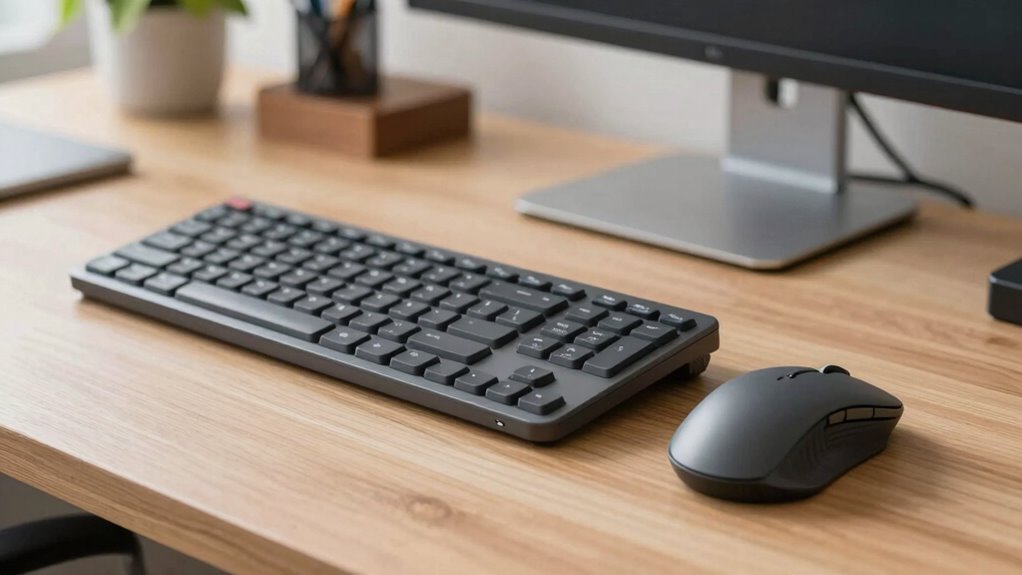

Switching to split keyboards and vertical mice over two weeks helps you adjust comfortably and avoid strain. Start by setting up your workspace properly, then focus on developing consistent habits in week one, like maintaining relaxed postures and proper hand placement. In week two, fine-tune your devices and incorporate stretches to ease discomfort. Paying attention to signs of full adjustment and periodic checks guarantees long-term benefits. Keep exploring for detailed steps to make your progression smoother.
Key Takeaways
- Gradually introduce split keyboards and vertical mice, starting with short daily sessions to build comfort.
- Adjust device height, tilt, and positioning incrementally to find a natural, strain-free setup.
- Practice proper hand and wrist posture, keeping wrists straight and relaxed during use.
- Incorporate regular stretching and breaks to prevent soreness and promote muscle adaptation.
- Monitor comfort and make small, ongoing adjustments to optimize ergonomics over the two-week period.
Why Switch to Split Keyboards and Vertical Mice for Better Ergonomics
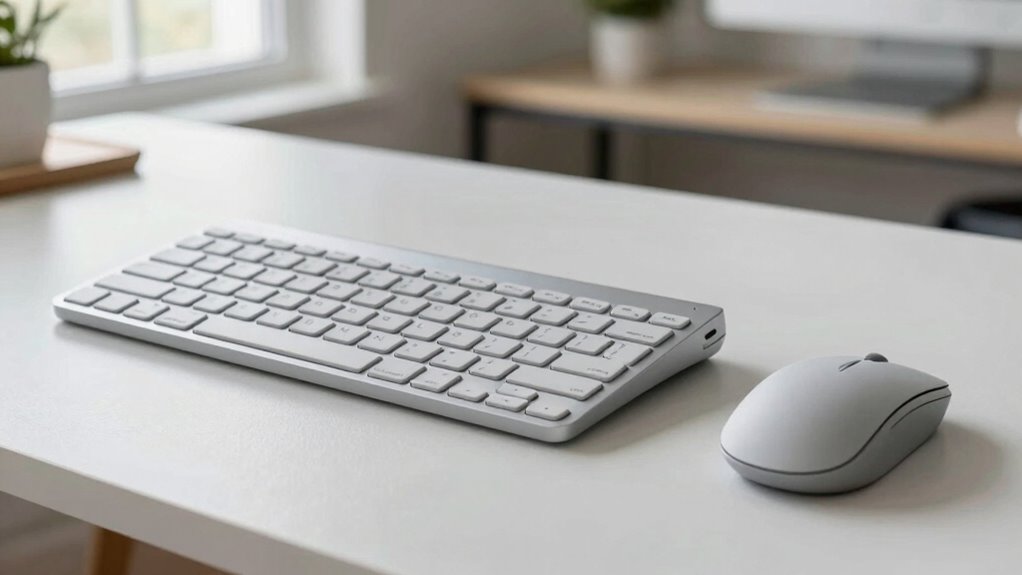
Switching to split keyboards and vertical mice can considerably improve your comfort and reduce strain during long hours at your desk. These ergonomic benefits help align your hands, wrists, and forearms in a more natural position, preventing awkward angles that cause fatigue. By minimizing repetitive strain, you’ll experience less discomfort and lower the risk of developing conditions like carpal tunnel syndrome. Proper workspace setup is essential for maintaining good posture and maximizing ergonomic benefits, so adjusting your environment can further enhance your comfort. Plus, these devices promote better posture, encouraging you to sit upright and maintain proper spinal alignment. When your workspace supports user comfort, you’re more likely to stay focused and productive without the distraction of aches and pains. Incorporating ergonomic devices like split keyboards and vertical mice into your setup offers a simple yet effective way to enhance ergonomics and promote long-term health.
Preparing Your Workspace for an Ergonomic Transition
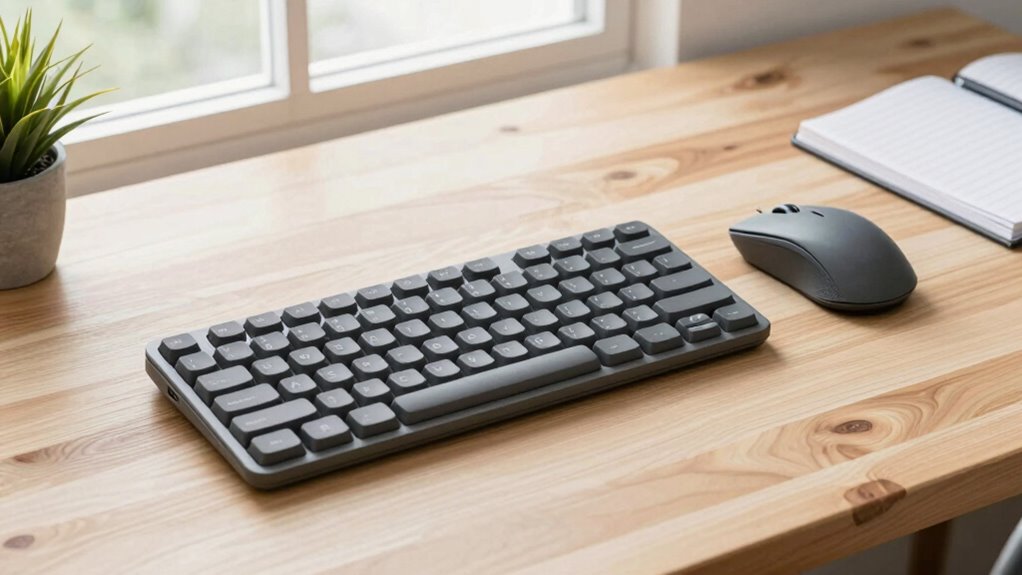
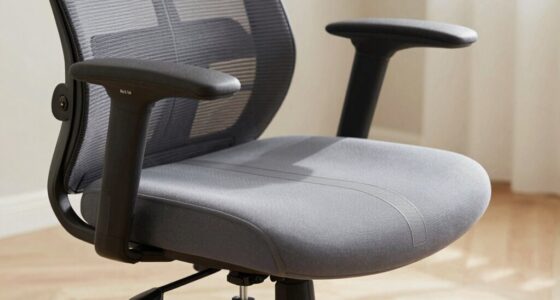
Before you start using split keyboards and vertical mice, preparing your workspace to support an ergonomic setup is vital. Begin with desk organization—clear clutter and ensure your desk surface is spacious enough for proper placement of your new devices. Keep frequently used items within easy reach to prevent unnecessary stretching or twisting. Lighting optimization is also essential; ensure your workspace is well-lit to reduce eye strain. Position your monitor at eye level, and avoid glare that could cause discomfort. Adjust your chair height to keep your feet flat on the floor and your knees at a 90-degree angle. Additionally, being aware of early warning signs for musculoskeletal discomfort can help you identify and address issues before they develop into more serious problems. Incorporating knowledge about ergonomic principles can further enhance your workspace setup and promote long-term comfort. Being mindful of proper posture alignment throughout your workday can prevent fatigue and injury. By organizing your desk and optimizing lighting, you’ll create a comfortable environment that encourages good posture and facilitates your shift to ergonomic peripherals.
Setting Up Your Ergonomic Keyboard and Mouse Correctly
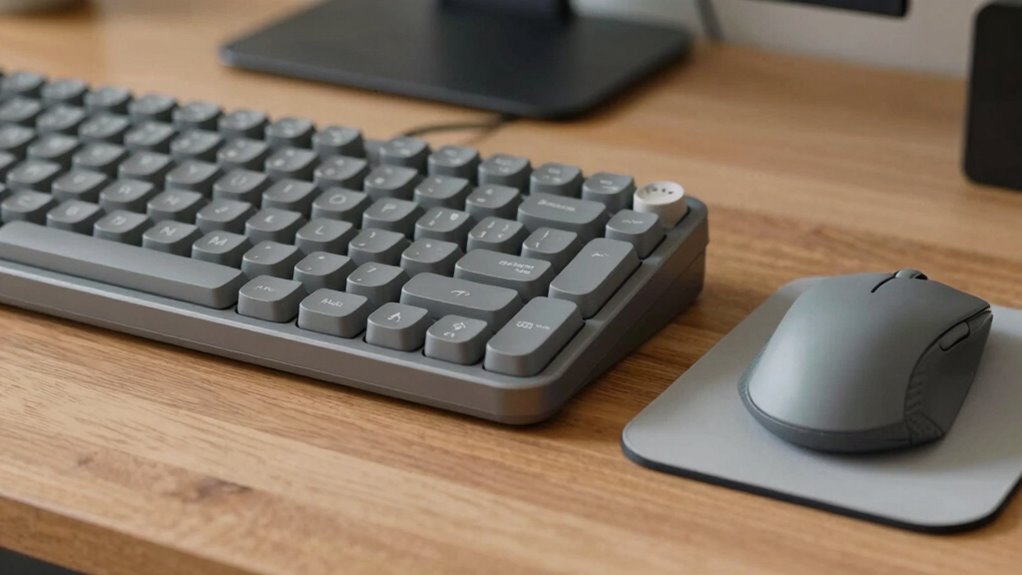
To guarantee maximum comfort and reduce strain, you need to set up your ergonomic keyboard and mouse properly from the start. Begin by adjusting your keyboard for ideal keyboard customization—ensure it’s at elbow height and slightly tilted for a natural wrist position. For your mouse, set the sensitivity to a level that allows precise movement without overreaching; this reduces unnecessary wrist motion. Use the table below to fine-tune your setup:
| Component | Adjustment Tips | Goal |
|---|---|---|
| Keyboard | Slight tilt, at elbow height, customize key layout | Reduce wrist strain |
| Mouse | Adjust sensitivity, keep close to your hand | Minimize arm movement |
| Desk Height | Keep forearms parallel to the ground | Maintain neutral posture |
Proper setup ensures comfort and prevents strain during extended use.
Week 1: Developing Habits and Getting Comfortable
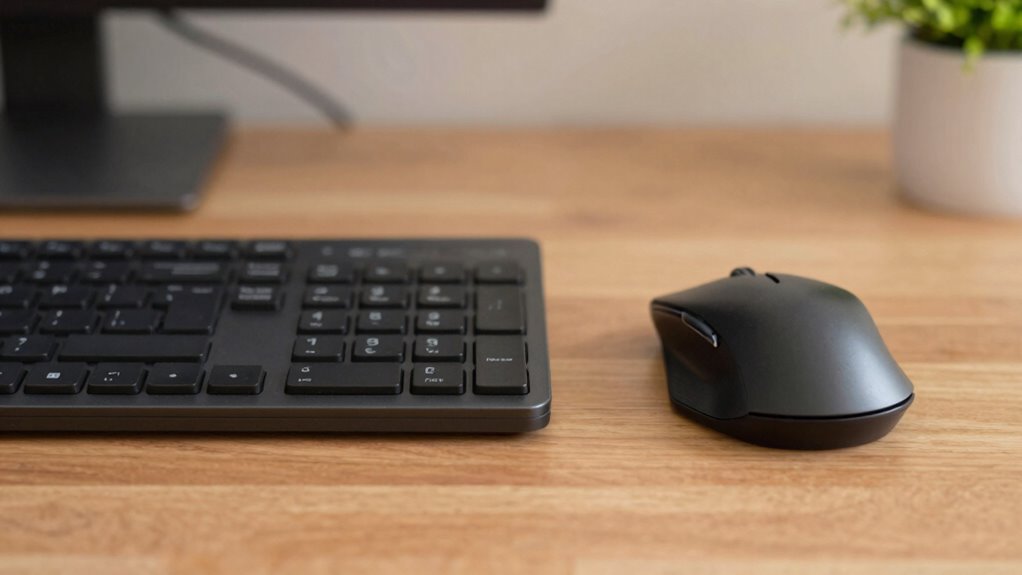
This week, focus on establishing proper ergonomics and making your new setup feel natural. Practice using your split keyboard and vertical mouse consistently to build comfortable habits. Remember to adjust your devices gradually to prevent discomfort and guarantee long-term success. Incorporating ergonomic performance parts like adjustable supports can further enhance comfort during your transition. Additionally, paying attention to body awareness can help you identify and correct any strain early on, promoting healthier usage patterns. Being mindful of ergonomic standards ensures your workspace remains supportive and reduces the risk of injury. Maintaining healthy posture throughout the day can further improve overall comfort and productivity during your work sessions. Integrating proper ergonomics into your routine can also improve overall comfort and productivity throughout the day.
Establish Proper Ergonomics
Starting your ergonomic journey involves establishing habits that promote comfort and reduce strain. Focus on your keyboard layout—ensure it’s positioned so your elbows stay close to your body and your wrists remain straight. This helps prevent unnecessary tension. When using your mouse, pay attention to your grip; a relaxed, natural mouse grip minimizes strain on your hand and wrist. Adjust your chair height so your feet are flat on the floor, and your monitor is at eye level, reducing neck strain. Incorporate Free Floating techniques to support natural arm movement and prevent fatigue. Consistency is key—regularly check your posture and setup to maintain proper ergonomics. Developing these habits early will make your progression smoother and set a foundation for long-term comfort. Proper ergonomics isn’t just about equipment; it’s about mindful positioning and habits.
Practice Consistent Usage
Once you’ve set up your workspace with proper ergonomics, the next step is to develop a routine of consistent usage. Regularly using your split keyboard and vertical mouse helps your body adapt, maximizing ergonomic benefits and improving user comfort. Stick to a schedule, even if it’s just 15-minute intervals, to build familiarity and reduce strain. Consistency trains your muscles and joints, encouraging better posture and reducing tension over time. Avoid frequent switching between devices to establish a clear habit. As you practice daily, you’ll notice your muscles becoming more accustomed to the new setup, which enhances overall comfort. Incorporating noise-reducing strategies into your routine can further support a comfortable workspace by minimizing distractions and promoting focus. Staying committed during this initial week ensures your body adjusts smoothly, setting a solid foundation for long-term ergonomic health and user comfort. Smart design for comfortable, welcoming living spaces emphasizes the importance of consistent routines to promote well-being.
Adjust Gradually
Although it’s tempting to fully switch to your new ergonomic setup immediately, it’s best to adjust gradually during Week 1. Jumping in too quickly can lead to ergonomic discomfort and frustration. Focus on small changes, like adjusting your keyboard’s tilt or trying different keyboard customization options to find what feels most natural. Spend short sessions getting used to the new position, rather than long stretches that might cause strain. Listen to your body and make incremental adjustments as needed. This slow approach helps your muscles adapt and prevents discomfort, making the transition smoother. Remember, developing comfortable habits takes time, so prioritize patience and gradual progress in your ergonomic journey.
Week 2: Fine-Tuning Your Technique and Increasing Comfort
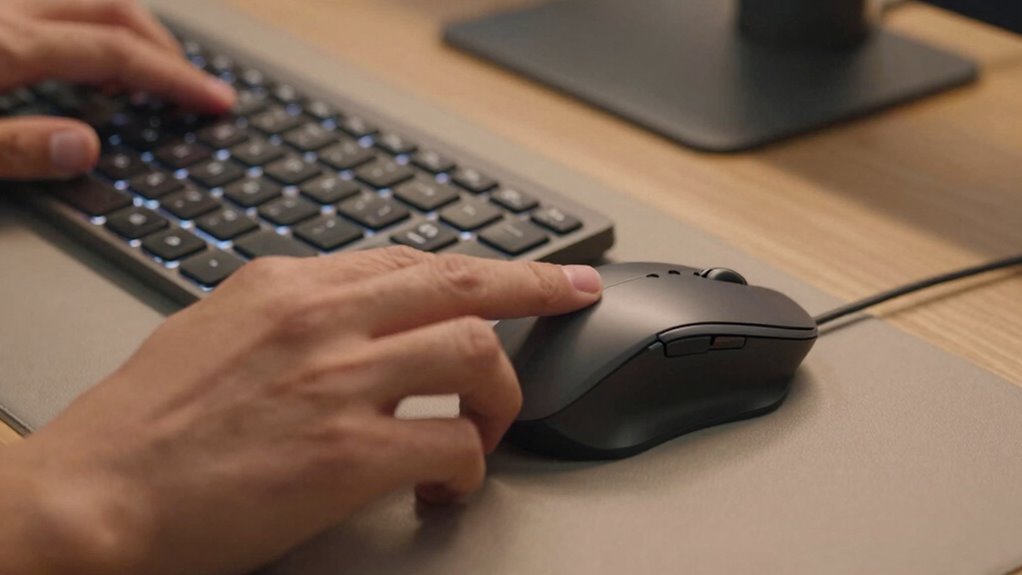
To enhance your comfort and efficiency, it’s essential to fine-tune your typing technique with your split keyboard and vertical mouse. Focus on proper hand positioning; keep your wrists straight and relaxed, avoiding unnecessary tension. Adjust your keyboard’s split to make sure your shoulders stay relaxed and your elbows remain close to your sides. Practice refined typing techniques, such as gentle keystrokes and minimal finger movement, to reduce fatigue. Use your vertical mouse with a relaxed grip, ensuring your hand stays in a natural, neutral position. Regularly check your posture and hand placement, making small adjustments as needed. Incorporating ergonomic principles into your setup can further prevent strain and improve long-term comfort. Being mindful of muscle tension during extended use can also help prevent fatigue and discomfort. Paying attention to proper ergonomics can significantly enhance your overall comfort and reduce the risk of repetitive strain injuries. Additionally, integrating adjustable workstation features allows you to tailor your environment for optimal support. This ongoing fine-tuning helps prevent strain and builds comfort, making your workstation more ergonomic and your typing more efficient over time.
Common Challenges When Adjusting and How to Overcome Them
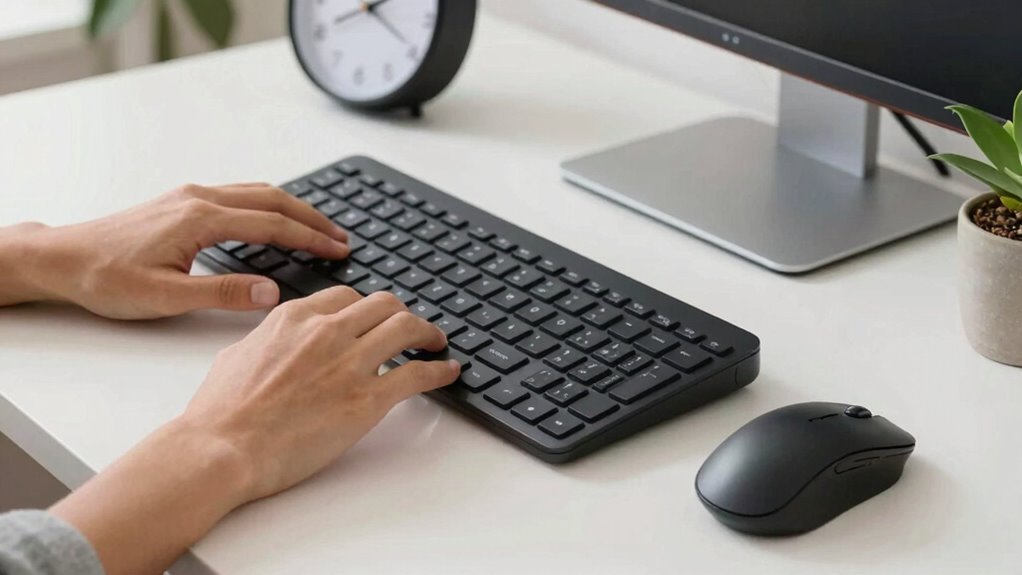
Adjusting to split keyboards and vertical mice often presents unexpected challenges, especially as your body adapts to new positions and movements. Common issues include muscle soreness, stiffness, and discomfort caused by unfamiliar angles. Equipment compatibility can also be tricky, as not all devices fit seamlessly with your setup, leading to frustration. To overcome these hurdles, start gradually, easing into longer sessions to prevent soreness. Ensure your equipment is compatible and adjust your workstation for ideal support. Using ergonomic tools such as wrist rests or adjustable stands can significantly enhance comfort and reduce strain during your transition. Incorporating proper ergonomic practices can further support your body’s adjustment process. Being aware of potential posture issues and actively correcting them can also promote a smoother transition. Understanding the importance of muscle adaptation can help you develop a more effective adjustment routine. Additionally, paying attention to water resistance features of your equipment can ensure longevity and consistent performance. Use the table below to identify potential problems and solutions:
| Challenge | Solution |
|---|---|
| Muscle soreness | Take breaks, stretch, and ease into use |
| Equipment incompatibility | Choose adjustable, compatible gear |
| Discomfort from positioning | Fine-tune your setup for ergonomic fit |
| Fatigue from unfamiliar use | Practice regularly to build familiarity |
Effective Exercises and Stretches to Ease Your Transition

To make your progression easier, incorporate regular stretches throughout the day. Always warm up your hands and wrists before doing any exercises, and focus on gentle movements for your fingers and wrists. Consistent, mindful stretching can help reduce discomfort and improve your flexibility over time.
Stretch Regularly Throughout Day
Because your hands and wrists are constantly engaged during work, taking regular breaks to stretch can make a significant difference. Incorporate hand stretching exercises into your routine to relieve tension and prevent strain. Simple stretches like flexing and extending your fingers or rotating your wrists increase flexibility and reduce stiffness. Remember, posture awareness is key—maintain an upright posture and avoid slouching to minimize stress on your wrists and shoulders. Set reminders to pause and stretch every 30 minutes, especially when adjusting to a split keyboard or vertical mouse. These quick, consistent stretches keep your muscles relaxed, improve circulation, and help you stay comfortable throughout the day. Regular stretching isn’t just a habit; it’s essential for a smooth progression and ongoing ergonomic health. Additionally, being aware of cultural content can motivate and inspire your ergonomic journey by connecting you with community practices and shared experiences. Incorporating ergonomic principles from reputable sources can further enhance your comfort and prevent long-term issues.
Warm-Up Before Exercises
Have you ever wondered how a proper warm-up can make the shift to a split keyboard or vertical mouse smoother? Warming up your muscles prepares them for movement, reduces strain, and prevents injury. Before starting your stretching routines or exercises, do a quick muscle warm-up to increase blood flow and loosen tight areas.
Here are three effective steps:
- Gently shake out your hands and wrists to activate circulation.
- Rotate your wrists clockwise and counterclockwise for 10 seconds each side.
- Flex and extend your fingers several times to prepare your tendons.
These simple movements ensure your muscles are primed, making subsequent stretching routines more effective and comfortable. A proper warm-up is instrumental in easing your transition and maintaining long-term comfort.
Gentle Wrist and Finger Movements
Gentle wrist and finger movements are essential for easing the shift to a split keyboard or vertical mouse, as they help loosen tight muscles and tendons. Focus on wrist relaxation by slowly rotating your wrists in circles, moving in both directions to reduce stiffness. Incorporate finger mobility exercises like spreading your fingers wide and then gently curling them into a fist, repeating several times. These movements improve flexibility and reduce tension, making the transition smoother. Regularly stretching your wrists and fingers prevents strain and promotes circulation. Keep movements gentle and controlled, avoiding any pain. Over time, these simple exercises will help your muscles adapt, easing discomfort and supporting your adjustment to new ergonomic setups.
How to Recognize When You’re Fully Adjusted
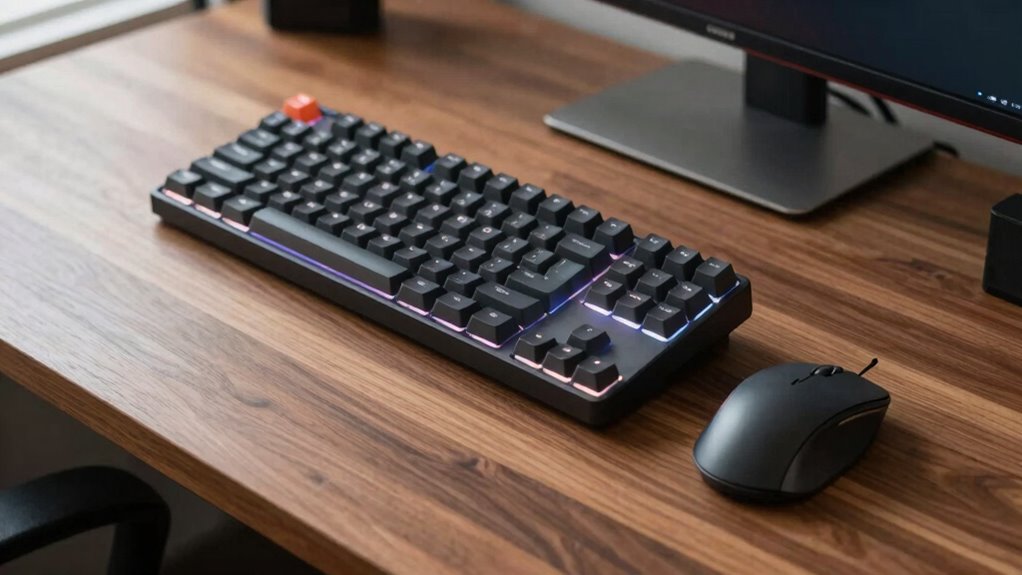
Once you’ve spent enough time adjusting your split keyboard and vertical mouse, you’ll start to notice subtle signs that you’ve found your ideal setup. These recognition signs and adjustment indicators show you’re fully adapted.
- Your wrists rest comfortably without strain or tension.
- You experience no numbness or tingling in your fingers after long periods.
- Movements feel natural, with minimal effort needed to type or click.
If these signs persist, and you notice less fatigue or discomfort, you’re likely fully adjusted. Your body has adapted to the new positioning, and the ergonomic benefits are now optimized. Trust these cues—your body’s signals are clear indicators that your setup feels right.
Tips to Maintain Your Ergonomic Benefits and Avoid Reversion
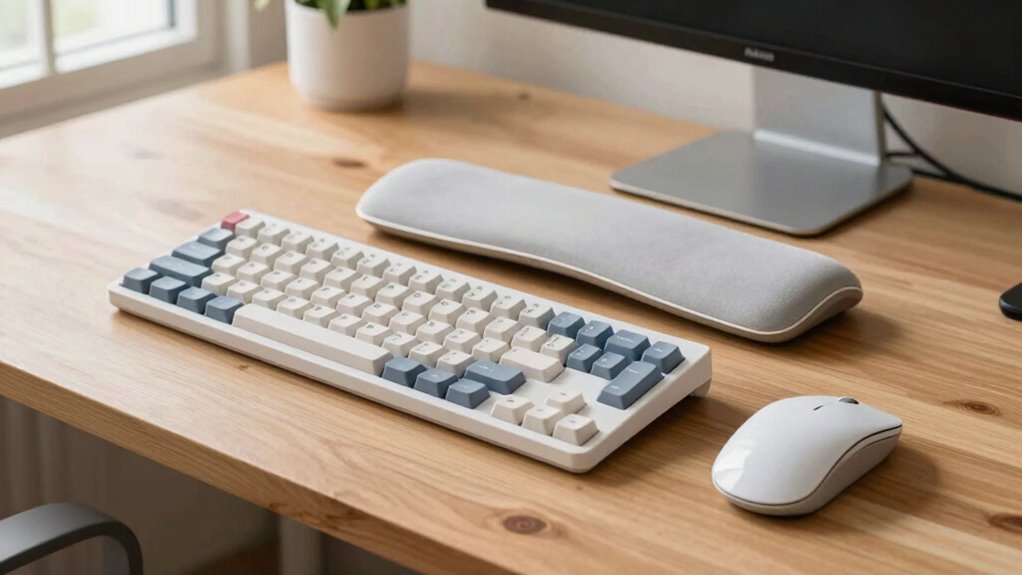
To keep your ergonomic benefits, you need to stay consistent with proper posture habits and make small adjustments as needed. Regularly review your equipment settings to guarantee they still support your comfort and health. Scheduling routine ergonomic checks helps you stay on track and prevents reverting to old, less healthy habits.
Reinforce Proper Posture Habits
Maintaining proper posture habits requires consistent effort, especially after adjusting to ergonomic tools like split keyboards and vertical mice. To reinforce these habits, focus on your hand posture and keyboard positioning daily.
- Regularly check that your hands stay relaxed and aligned with your forearms, avoiding unnecessary tension.
- Keep your keyboard at elbow height, ensuring your wrists remain in a neutral position without resting on the desk or keyboard edge.
- Remind yourself to sit upright, engaging your core, and avoid slouching or leaning forward, which can compromise your ergonomic setup.
Adjust Equipment Settings Regularly
Regularly adjusting your equipment settings guarantees you get the most ergonomic benefit from your split keyboard and vertical mouse. Take time to fine-tune keyboard customization, ensuring keys feel comfortable and responsive for your typing style. Experiment with key spacing and tilt to find what minimizes strain. Similarly, adjust mouse sensitivity so you can move smoothly without overreaching or exerting unnecessary force. Proper mouse sensitivity settings reduce arm and wrist tension, promoting natural movement. Frequent tweaks help you stay aligned with your ergonomic goals and prevent reverting to old habits. Keep your setup optimized by periodically reassessing these settings, especially if you notice discomfort or decreased efficiency. Consistent adjustments ensure your workspace remains supportive, reducing fatigue and enhancing long-term comfort.
Schedule Routine Ergonomic Checks
Scheduling routine ergonomic checks guarantees your workspace stays aligned with your needs and prevents slipping back into poor habits. Regular ergonomic assessments help you identify misalignments and maintain ideal comfort. To stay on track:
- Conduct a quick ergonomic assessment every month to ensure your keyboard, mouse, and monitor remain properly positioned.
- Reorganize your workspace as needed to promote better workspace organization and eliminate clutter that could cause poor posture.
- Track any discomfort or new issues, adjusting your setup immediately to prevent reversion to old, harmful habits.
How to Track Your Progress and Know When to Seek Advice

Monitoring your progress as you shift to split keyboards and vertical mice is essential to guarantee you’re making improvements and not developing new issues. To do this, track your progress daily by noting any pain relief, increased comfort, or improved posture. Keep a journal or checklist to oversee changes over the two-week period. If you notice persistent discomfort, tingling, or fatigue, it’s time to seek advice from a healthcare professional or ergonomic specialist. Knowing when to seek advice helps prevent long-term problems and ensures your adjustment is effective. Regularly evaluate how your body responds, and don’t hesitate to ask for guidance if something feels off. Staying proactive with tracking progress ensures you make the most of your ergonomic transition.
Frequently Asked Questions
Can I Use Split Keyboards and Vertical Mice With My Existing Desk Setup?
Yes, you can use split keyboards and vertical mice with your existing desk setup. Just check your desk’s space and height to guarantee compatibility, and be prepared for some ergonomic adjustments. You might need to reposition your monitor or add wrist supports to maximize comfort. With a few tweaks, you’ll enjoy the benefits of improved ergonomics without needing a complete desk overhaul.
Are There Specific Brands or Models Recommended for Beginners?
Think of choosing your first ergonomic gear like planting a seed—start simple. For beginners, I recommend brands like Logitech, Microsoft, and Kinesis, which offer beginner-friendly models. Look for the Logitech Ergo K860, Microsoft Sculpt Ergonomic, or Kinesis Freestyle2. These models are easy to use, affordable, and highly rated, making your progression smoother. Starting with trusted brands helps you build comfort and confidence as you adapt to new setups.
How Long Does It Typically Take to Fully Adapt to These Ergonomic Devices?
You can usually expect a 1-2 week adjustment period to fully adapt to split keyboards and vertical mice. During this learning curve, your muscles and coordination will get used to the new posture and layout. While some people adapt faster, others might need a bit more time. Consistent use and following an adjustment plan help speed up the process, making the shift smoother and more comfortable.
What Are Signs That My Current Setup Is Causing Discomfort or Injury?
Imagine your body as a car engine; if your posture issues cause it to rattle or overheat, pain symptoms will follow. Signs include persistent discomfort, numbness, or tingling, especially in your hands, wrists, or shoulders. If you notice ongoing aches or your grip feels strained, your current setup might be causing injury. Pay attention to these warning signals—they’re your body’s way of saying, “Change is needed.”
Can I Switch Back to Traditional Keyboards and Mice if I Don’T Like the New Setup?
Yes, you can switch back to traditional keyboards and mice if you don’t like the new setup. Just keep in mind, returning options might involve compatibility concerns, especially with specialized features. To make the transition smoother, verify your existing devices are compatible and readily available. Take your time to adjust, and don’t hesitate to revert if your comfort or productivity is compromised.
Conclusion
By the end of this two-week journey, you’ll have turned your workspace into a cozy haven that cradles your arms and wrists. Like a well-tuned instrument, your new setup will feel natural and harmonious. Stick with the plan, listen to your body, and watch as discomfort fades into the background. Soon, ergonomic bliss will be your new normal—your own symphony of comfort playing smoothly every day.