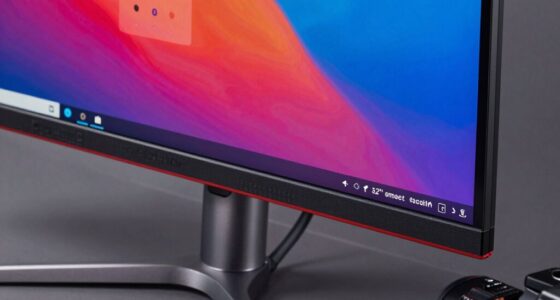
An ultrawide monitor can replace two screens by providing a seamless, broad workspace that boosts multitasking and efficiency. With more screen real estate, you can view multiple applications side by side without gaps or bezels. Proper setup, like positioning at eye level and calibrating colors, maximizes comfort and clarity. Whether organizing windows or customizing your workflow, an ultrawide can streamline your tasks. Keep exploring to discover how to optimize your workspace further.
Key Takeaways
- Ultrawide monitors provide seamless, continuous horizontal space, eliminating bezels and gaps found in dual monitor setups.
- They support efficient multitasking with built-in window management features like snapping and grid layouts.
- Proper ergonomic positioning at eye level reduces neck strain and enhances comfort during extended use.
- High color accuracy and calibration improve visual fidelity for creative tasks, replacing the need for multiple specialized screens.
- A sleek, unified appearance creates a minimalistic workspace, reducing clutter and simplifying workspace organization.
How Ultrawide Monitors Boost Your Productivity
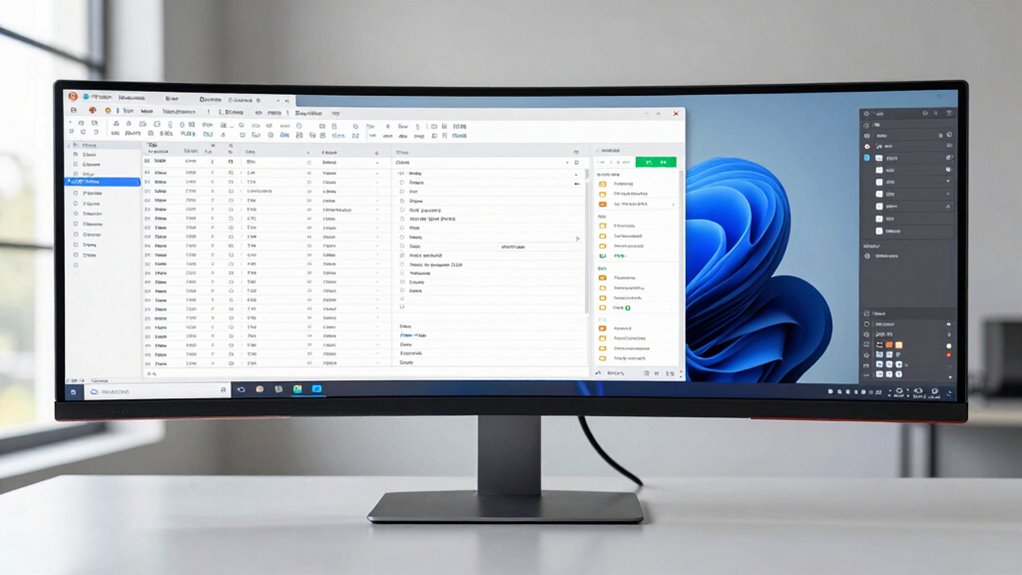
Ultrawide monitors considerably enhance your productivity by providing more screen real estate, allowing you to view multiple applications and documents simultaneously without constantly switching tabs. To make the most of this space, guarantee proper color calibration so your visuals are clear and accurate, reducing eye strain and improving focus. Ergonomic positioning is also essential; position the monitor at eye level and maintain a comfortable distance to prevent neck and eye fatigue. This setup encourages better posture and longer, more comfortable work sessions. With ideal calibration and ergonomic placement, you can seamlessly multitask, boost efficiency, and reduce distractions. An ultrawide monitor isn’t just about size — it’s about creating a workspace that supports your workflow and minimizes physical discomfort. Additionally, understanding the importance of monitor placement can help optimize your setup for maximum comfort and productivity. Proper monitor setup can also prevent common issues like eye strain and musculoskeletal problems, ensuring sustained comfort during long work hours.
How to Choose the Best Ultrawide Monitor for Your Needs
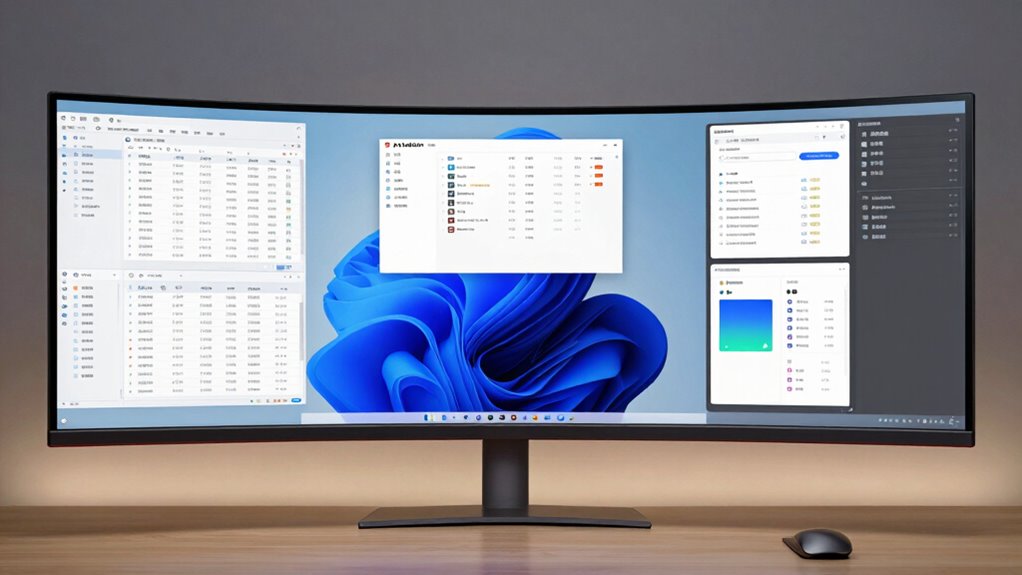
Choosing the right ultrawide monitor depends on your specific needs and how you plan to use it. Start by considering the monitor’s color calibration, especially if you work with photo editing, design, or video production, where color accuracy matters. Look for models with good color reproduction and calibration options. An ergonomic setup is also vital; check for adjustable stands, height, tilt, and swivel features to guarantee comfortable long-term use. Think about your workspace size and whether you need a curved screen for better immersion or a flat display for easier multi-monitor setups. Prioritize resolution and refresh rate based on your tasks—higher for gaming or detailed work, standard for general productivity. Additionally, understanding content formats can help you choose a display that best suits your workflow. Ultimately, selecting a monitor aligned with your workflow and comfort needs boosts your efficiency.
Setting Up Your Ultrawide Screen for Maximum Efficiency
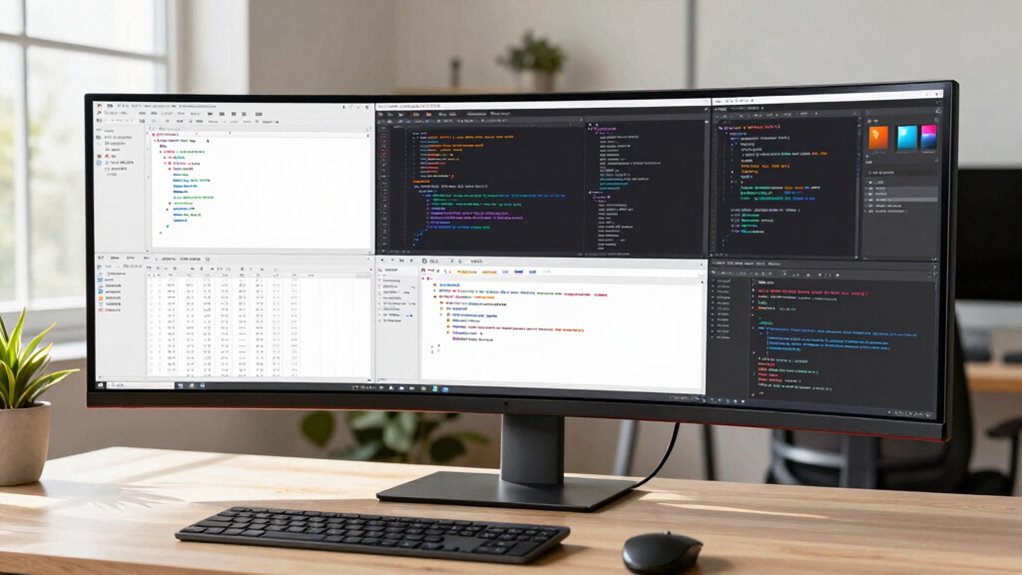
To maximize your ultrawide monitor’s efficiency, start by organizing your workspace to reduce clutter and distractions. Proper ergonomic positioning is essential—place the monitor at eye level, about an arm’s length away, to prevent neck strain and maintain comfort during long work sessions. Adjust the height and tilt to ensure a natural viewing angle. Additionally, calibrate your monitor’s color settings for accurate color reproduction, which helps reduce eye fatigue and improves visual clarity. Use consistent lighting to minimize glare and reflections. Keep your workspace clean and free of unnecessary objects that could divert your attention. Be mindful of visual perception and how color calibration can influence your overall productivity. By optimizing ergonomic positioning and ensuring accurate color calibration, you’ll create a comfortable, efficient environment that maximizes your ultrawide monitor’s potential.
Tips for Multitasking Effectively on an Ultrawide Monitor
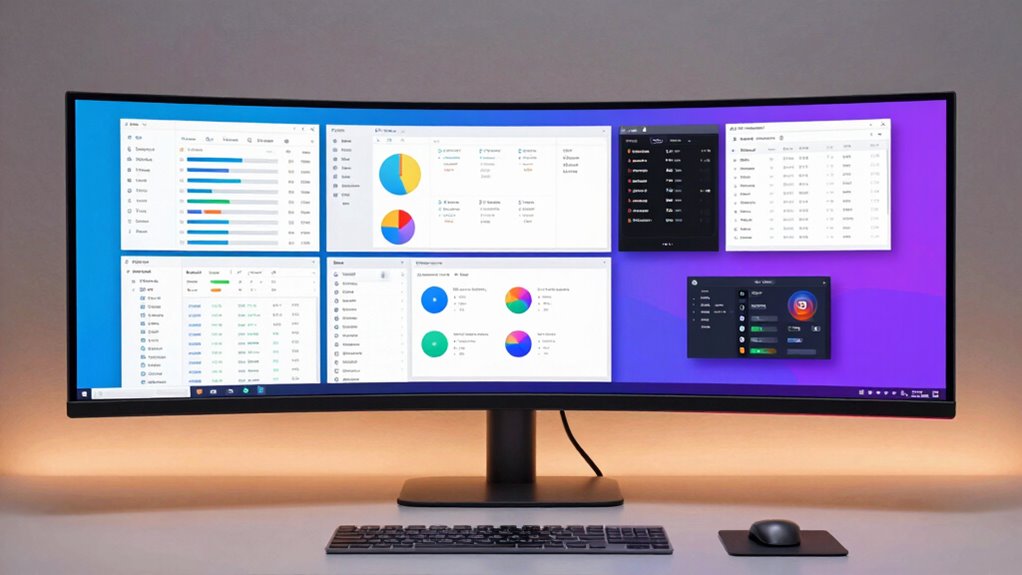
To multitask effectively on your ultrawide monitor, you need to organize your windows strategically so everything stays accessible. Make the most of built-in tools to snap, split, or manage your screens with ease. These tips will help you stay focused and work more efficiently across multiple tasks. Additionally, leveraging features like window management can further optimize your workspace for seamless multitasking. Incorporating simple techniques such as foam rolling tips can also aid in quick recovery and maintaining focus during long work sessions, ultimately enhancing your overall productivity and well-being. Utilizing monitor accessories such as adjustable stands or cable management solutions can also keep your workspace tidy and ergonomic, further boosting your efficiency.
Organize Windows Strategically
Maximizing your ultrawide monitor’s potential starts with organizing your windows effectively. Good window management helps you multitask smoothly and maintain ergonomic positioning, reducing strain. Divide your screen into zones based on task priority or workflow, ensuring each window has enough space. Use a grid layout for quick access, avoiding clutter. Consider grouping related windows together for easier switching. Keep essential tools within your main focus area and secondary apps on the sides. Here’s a simple visualization:
| Primary Work | Secondary Tools | Reference Data |
|---|---|---|
| Document | Chat Window | Email Preview |
| Spreadsheet | Research Tab | Notes |
| Browser | Communication | Analytics |
| Video Call | Drafts | Reports |
| Calendar | Tasks List | Notifications |
This strategic organization boosts productivity and maintains comfort. Additionally, window snapping features can further streamline your workflow by automatically aligning windows to predefined zones.
Use Built-In Tools Efficiently
Leveraging your ultrawide monitor’s built-in tools can markedly boost your multitasking efficiency. Use keyboard shortcuts to quickly switch between applications, snap windows into specific regions, or toggle split-screen modes. These shortcuts minimize the time spent browsing menus, keeping you focused on your work. Additionally, take advantage of app integrations that allow seamless communication between programs, such as linking your calendar with task management apps or enabling drag-and-drop between windows. Many ultrawide monitors come with software that centralizes these features, making it easier to organize multiple tasks side by side. By mastering keyboard shortcuts and utilizing app integrations, you optimize your workflow, reduce interruptions, and make full use of your monitor’s expansive real estate.
Ultrawide vs. Dual Monitors: Which Setup Is Better?

When choosing between an ultrawide and dual monitors, consider how much screen space you need and how flexible your workspace should be. Ultrawides offer seamless viewing, while dual monitors give you more layout options. Think about which setup aligns best with your multitasking style and workspace goals.
Screen Real Estate Differences
Ultrawide monitors offer a seamless, continuous display that stretches across your field of vision, providing remarkably more horizontal space than traditional dual monitors. This increased screen space enhances your ability to multitask and view multiple applications simultaneously. The aspect ratio of ultrawides, typically 21:9 or wider, allows for a broader, immersive workspace without the bezels of separate screens breaking your workflow. Compared to dual monitors, ultrawides eliminate gaps and misalignments, creating a more unified visual field. Additionally, ultrawides can support multiscreen workflows without the need for physical separation or multiple devices.
Workspace Flexibility and Setup
Choosing between an ultrawide monitor and dual monitors depends on your workspace needs and how you prefer to organize your digital tasks. Ultrawides offer seamless, immersive screens that reduce bezel distractions, making ergonomic adjustments simpler and enhancing aesthetic appeal. Dual monitors provide flexibility for separate workspaces, letting you position screens independently for *ideal* comfort. Consider this setup:
| Feature | Ultrawide Monitor | Dual Monitors |
|---|---|---|
| Workspace Flexibility | Limited to one large screen | Highly adaptable, different angles |
| Ergonomic Adjustments | Limited, but easier to align in one mount | Better for customized positioning |
| Aesthetic Enhancements | Sleek, unified look | Can create a cluttered appearance |
Additionally, multitasking efficiency can be optimized with either setup depending on how you configure your workspace. For example, some users find that monitor placement plays a significant role in overall productivity. Optimizing ergonomic comfort is essential to prevent strain during long working hours. Incorporating adjustable monitor stands can further enhance comfort and flexibility, ensuring a setup that suits your specific needs. Your choice hinges on balancing setup flexibility with ergonomic comfort and visual style.
Common Troubleshooting Tips for Ultrawide Monitors
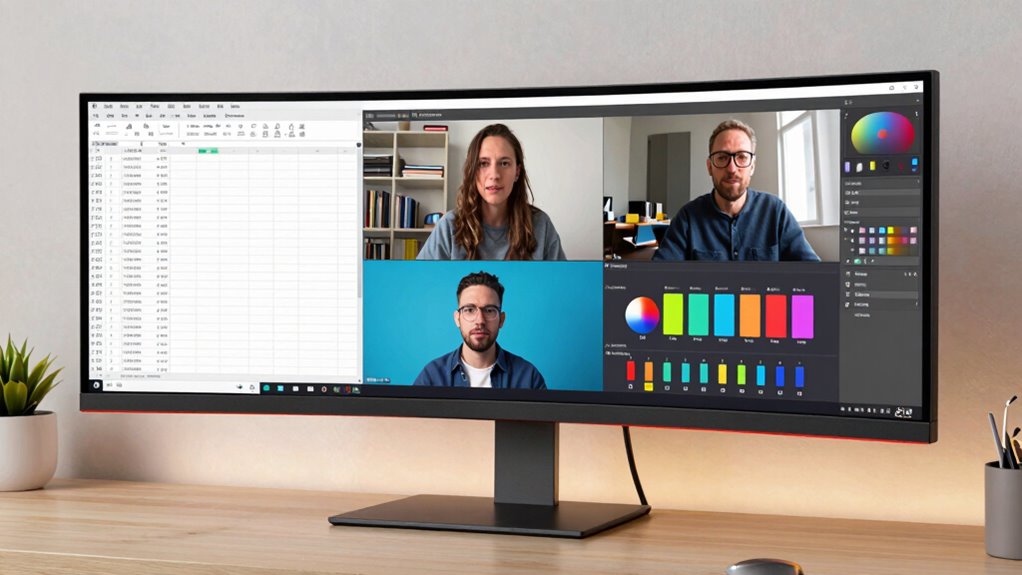
Troubleshooting your ultrawide monitor can seem challenging, but many issues have straightforward fixes. First, check your cable management; loose or damaged cables often cause display problems. Ensure your HDMI, DisplayPort, or USB-C connections are secure and undamaged. Next, adjust the color calibration settings to fix color inconsistencies or dull images, which can improve visual clarity. Additionally, verifying the monitor’s refresh rate in your display settings can resolve flickering or stuttering issues. Regularly updating your graphics drivers is also essential for optimal performance and compatibility. If you experience flickering or resolution issues, resetting your monitor to factory settings or reinstalling drivers can help. Remember, maintaining tidy cables not only improves aesthetics but also prevents connection problems. Proper cable management helps reduce strain on ports and prolongs the lifespan of your connections. Using the right DIY tools and safety tips can also help you perform these adjustments safely and effectively. Ensuring good air quality by keeping dust away from electronic components can prevent overheating and connection issues, which is crucial for optimal performance. For persistent issues, it’s beneficial to check the air quality considerations, as dust and debris can sometimes affect electronic components and connections.
Frequently Asked Questions
Can Ultrawide Monitors Replace Multiple Monitors in Gaming Setups?
Yes, ultrawide monitors can replace multiple monitors in your gaming setup. They offer excellent monitor flexibility, allowing you to seamlessly switch between games and multitask without gaps or bezels. Plus, display customization features enable you to optimize resolution, aspect ratio, and refresh rates for immersive gameplay. With a single ultrawide, you get a cleaner, more streamlined look while enjoying the advantages of multi-monitor productivity in your gaming experience.
What Are the Ergonomic Considerations for Ultrawide Monitor Use?
To guarantee ergonomic positioning and prevent eye strain, you should position your ultrawide monitor at eye level, maintain a comfortable distance, and avoid glare by adjusting lighting. Keep your back straight, shoulders relaxed, and use an adjustable stand to align the monitor properly. Regular breaks, blinking frequently, and using proper lighting help prevent eye strain. Prioritize these ergonomic considerations to promote comfort and reduce fatigue during extended use.
How Does Ultrawide Impact Long-Term Eye Health?
Ultrawide monitors can reduce eye strain and visual fatigue if you adjust the brightness and contrast properly. However, prolonged use may cause your eyes to work harder to focus across the wide screen, increasing the risk of long-term eye health issues. To prevent this, take regular breaks, follow the 20-20-20 rule, and guarantee proper seating position. These steps help protect your eyes during extended ultrawide monitor use.
Are Ultrawide Monitors Compatible With All Operating Systems?
Yes, ultrawide monitors are generally compatible with most operating systems, but you should check software compatibility and driver support first. Windows, macOS, and Linux usually support these displays without issue, but some features might require specific drivers or updates. Make sure your system’s graphics card drivers are current, and verify that your OS can recognize and properly configure the ultrawide monitor for peak performance.
What Are the Cost Differences Between Ultrawide and Dual Monitor Setups?
You’ll find ultrawide monitors often cost more upfront, with prices ranging from $300 to over $1,000, depending on size and features. In contrast, dual monitor setups can be more budget-friendly, with each monitor costing around $150 to $300. When considering cost comparison, think about your budget considerations—ultrawides might save you space and improve productivity long-term, but dual setups can be more economical initially.
Conclusion
Ready to transform your workspace? An ultrawide monitor could be the game-changer you’ve been waiting for. But is it truly the perfect fit for your workflow? The choice isn’t always clear, and the setup can be tricky. Stay tuned—there’s more to discover about revealing maximum productivity with this sleek, powerful layout. The next step might just revolutionize how you work. Will you take it? The answer awaits.